Insert SIM Card in SIM1 SIM2 Slots On The EZR35-5G Router
 {% hint style="warning" %}
Please always **turn off the power** while inserting or removing the SIM card.\
Please use an unlocked and activated SIM card.
{% endhint %}
## **Insert A SIM Card**
Turn off the router power before inserting or removing a SIM card.
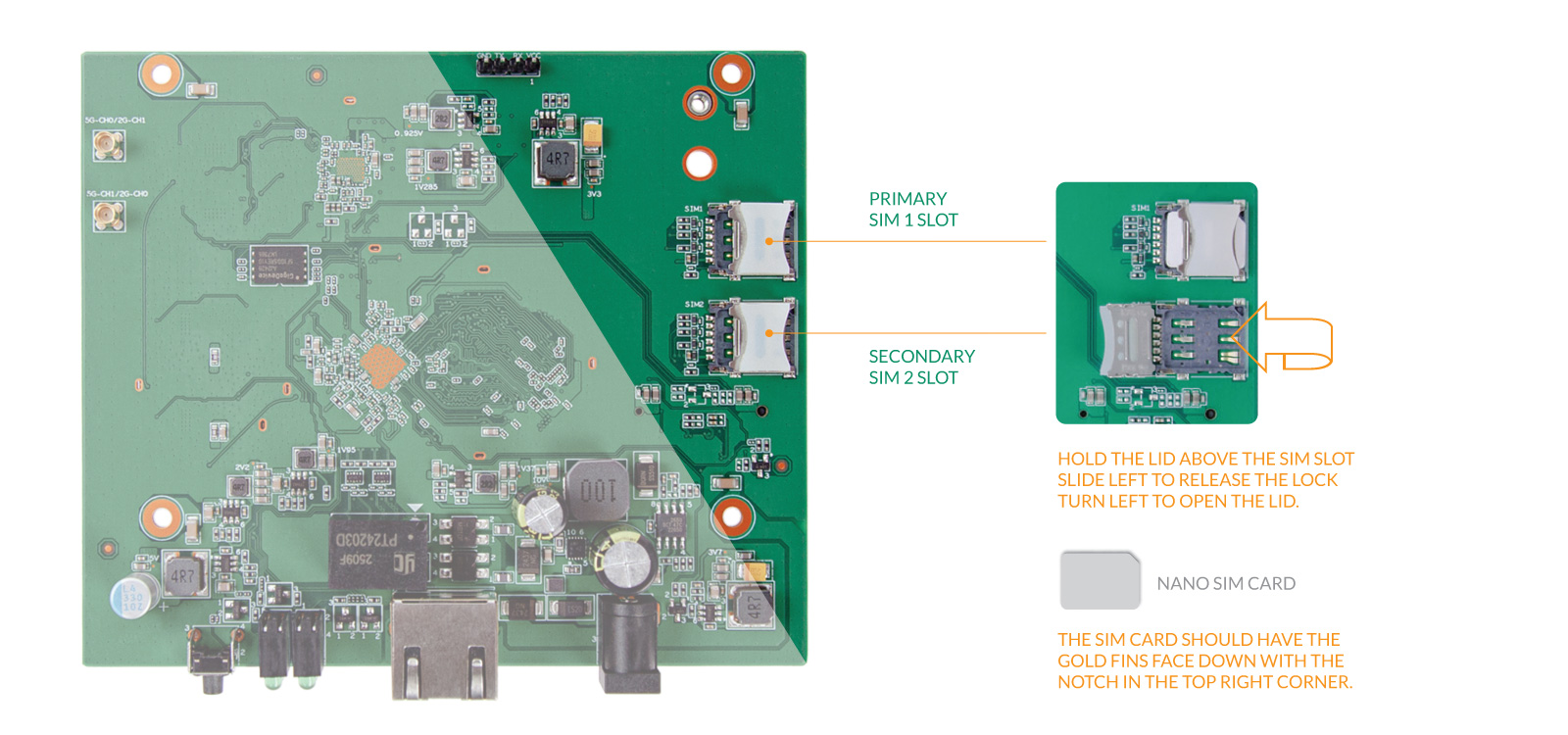
1. Locate the SIM1 and SIM2 slots in the top right corner of the motherboard.
2. Hold the lid of the SIM card slot and slide left to open the cover.
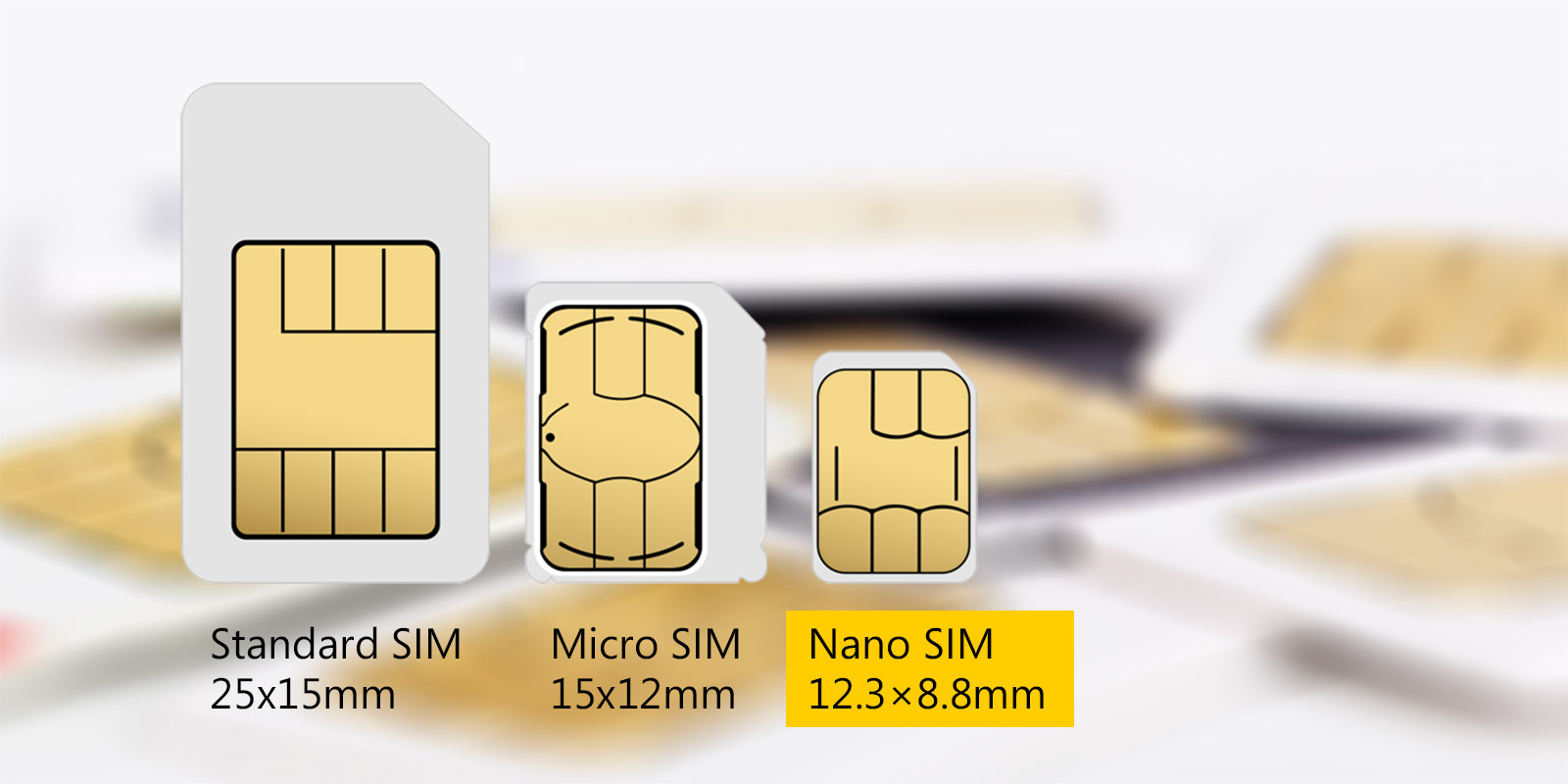
3. Put a Nano SIM card in the **SIM1** slot. \
*There is only one correct way to settle the SIM card - the gold pins should be face down, and the notch should be on the top right corner.*
4. Cover the SIM lid and slide right to lock the lid.
{% hint style="warning" %}
Please always **turn off the power** while inserting or removing the SIM card.\
Please use an unlocked and activated SIM card.
{% endhint %}
## **Insert A SIM Card**
Turn off the router power before inserting or removing a SIM card.
1. Locate the SIM1 and SIM2 slots in the top right corner of the motherboard.
2. Hold the lid of the SIM card slot and slide left to open the cover.
3. Put a Nano SIM card in the **SIM1** slot. \
*There is only one correct way to settle the SIM card - the gold pins should be face down, and the notch should be on the top right corner.*
4. Cover the SIM lid and slide right to lock the lid.
Insert SIM Card in SIM1 SIM2 Slots On The EZR35-5G Router